
Welcome to the fourth part of the NSX Federation series. In the last post, I talked about configuring local and global NSX-T managers to enable federation. In this post, I will show how we can leverage it to configure stretched networking across sites.
If you have missed the earlier posts of this series, you can read them using the links below:
1: NSX-T Federation-Introduction & Architecture
NSX-T Federation Topology
Before diving into the lab, I want to do a quick recap of the lab topology that I am building.
The following components in my lab are already built out:
1: Cross Link Router: This router is responsible for facilitating communication between Site-A & Site-B SDDC/NSX.
- Site-A ToR01/02 are forming BGP neighborship with the Cross Link Router and advertising necessary subnets to enable inter-site communication.
- Site-B ToR01/02 are also BGP peering with the Cross Link Router and advertising subnets.
2: Site A/B ToR: The two ToRs in Site A/B are providing core infrastructure networking and have the following configured.
- VLANs for datacenter traffic (Mgmt, vMotion & VSAN) and overlay (ESX TEP, Edge TEP, RTEP, and Edge Uplinks) are configured here.
- Also, BGP (AS, peers, etc.) has been configured for Site A/B SDDC edges in advance.
3: NSX-T Config:
- The hosts have been configured as a transport node.
- Edges have been deployed and added to the edge cluster.

I will show the deployment/configuration of the following objects in this post.
- Stretched Tier 0 gateway.
- Stretched Tier 1 gateway.
- Stretched segments.
- BGP configuration on stretched Tier 0.
Stretched Tier 0 Deployment/Configuration
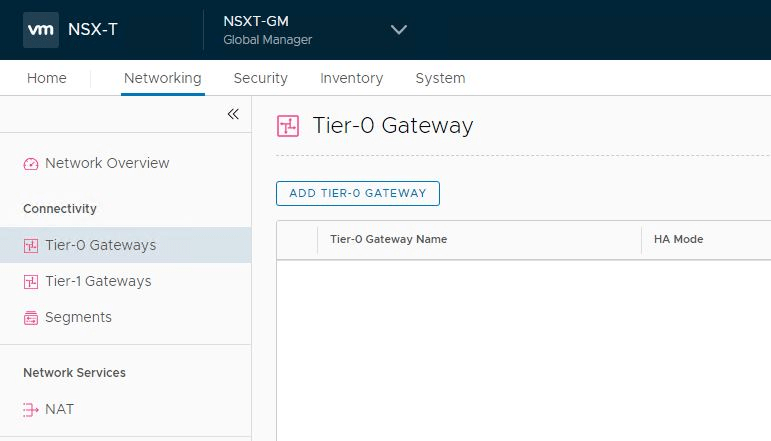
To deploy a stretched T0 gateway, login to NSX-T global manager and navigate to Networking > Network Overview > Tier-0 Gateways, and click the Add button.
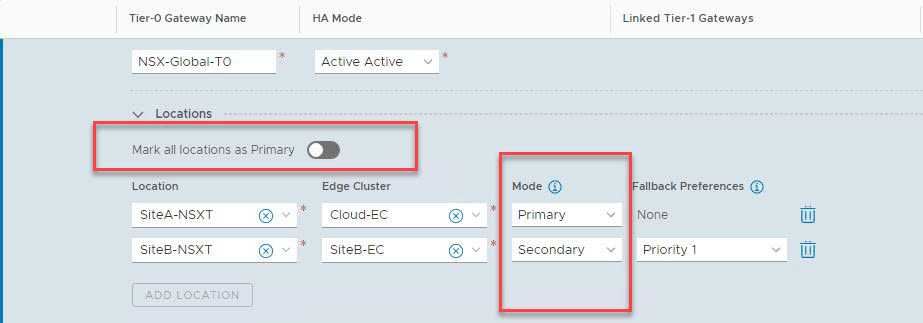
Provide a name for the T0 gateway and select the HA mode.
If you are deploying an Active-Active datacenter, leave the option “Mark all locations as Primary” turned on; else, turn off that option using the toggle button and manually specify the primary and secondary sites.
Save the configuration after making the selection.
On switching context to the local NSX-T manager, you will see that the newly created T0 gateway appears there with GM appended in front of it. GM indicates that the object has been created via Global Manager.


Stretched Tier-1 Gateway Deployment/Configuration
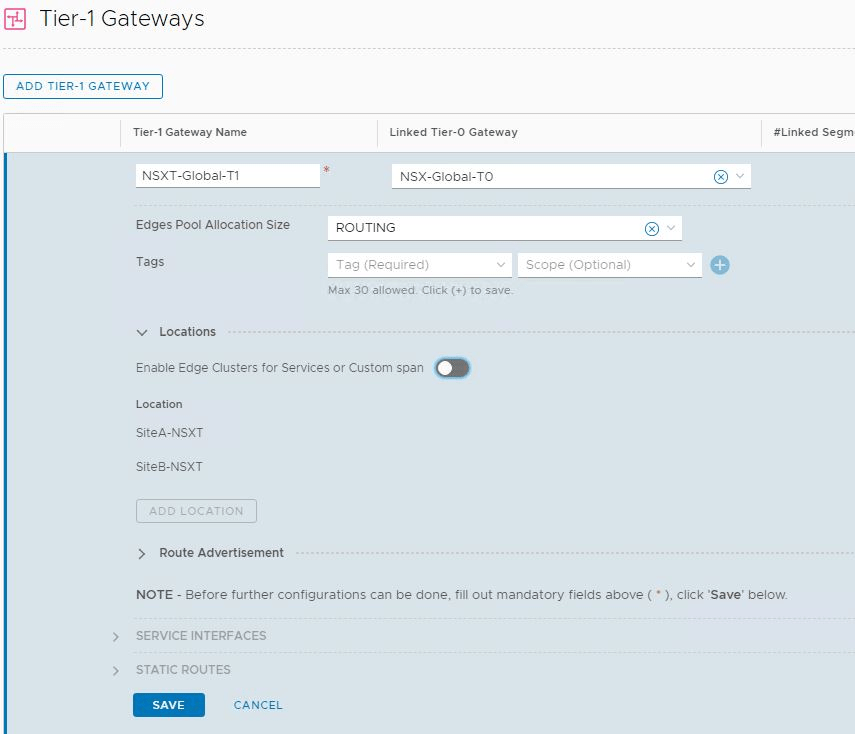
Similarly, deploy a T1 gateway via the global manager and connect it to the global T0 gateway.
Note: By default, the T1 gateway will be stretched across all sites participating in federation, but you can limit the span by toggling the option “Enable Edge Clusters for Services or Custom Span.”
Create Stretched Segments
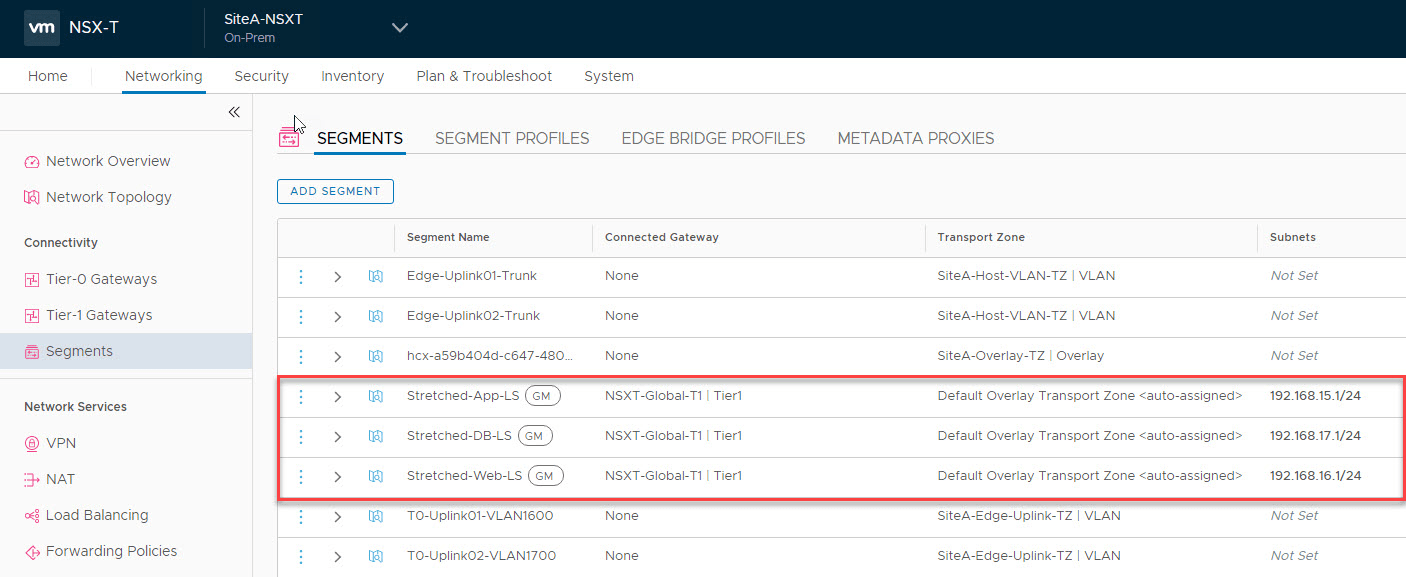
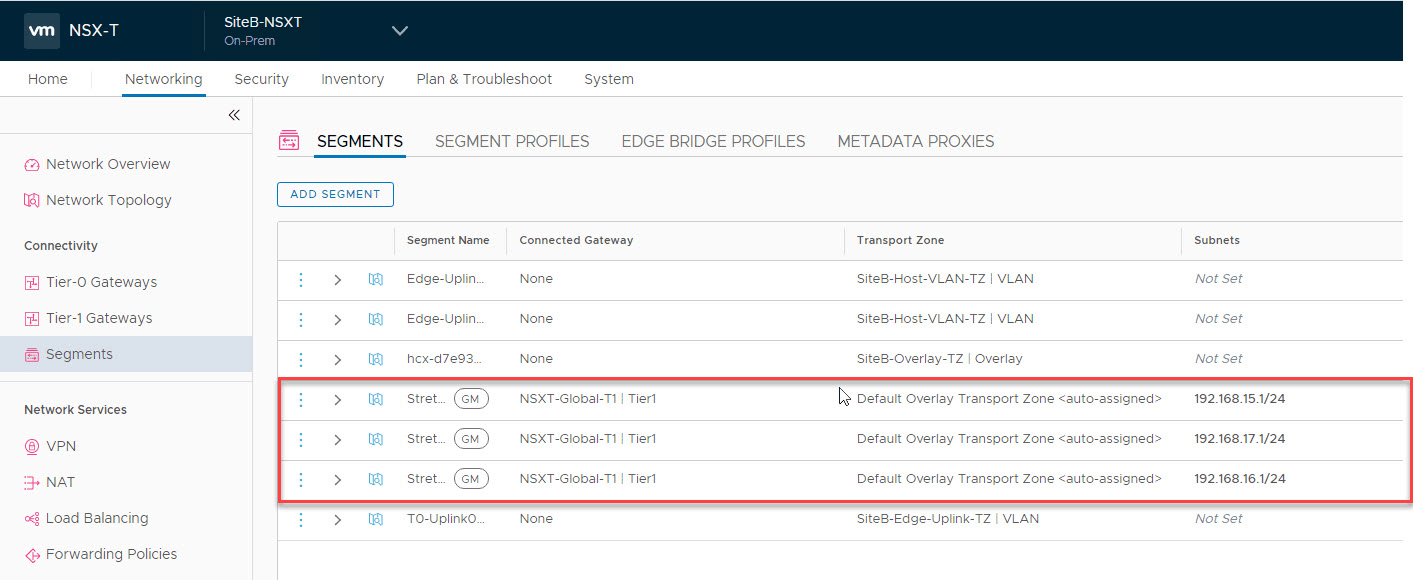
Create 3 segments and attach them to the stretched T1 gateway. Segments will then start showing up across all sites.
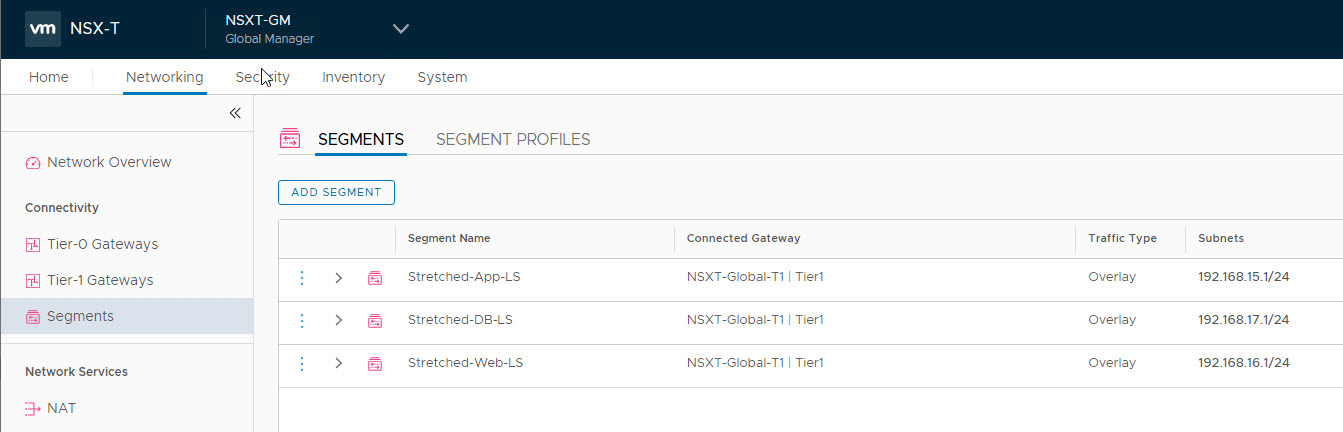
To verify this, switch the context to the local NSX-T manager and ensure the newly created segments are visible with GM appended in the name.
Interestingly, the transport zone for these segments is auto-allocated when segments are stretched to local NSX-T sites.
Configure T0 Gateway Interfaces.
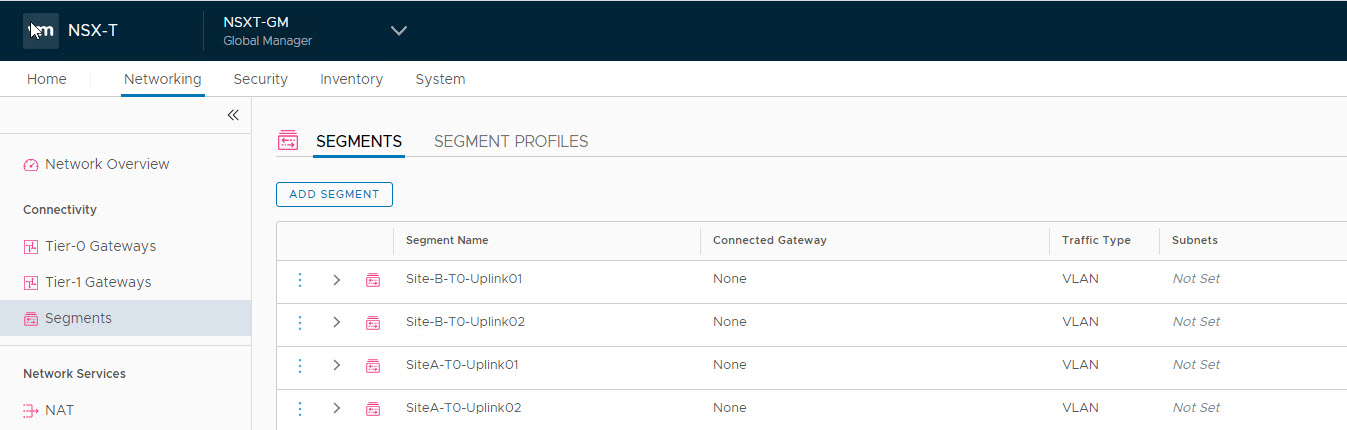
Create VLAN-backed logical segments that will serve as interfaces for the T0 gateway across sites.
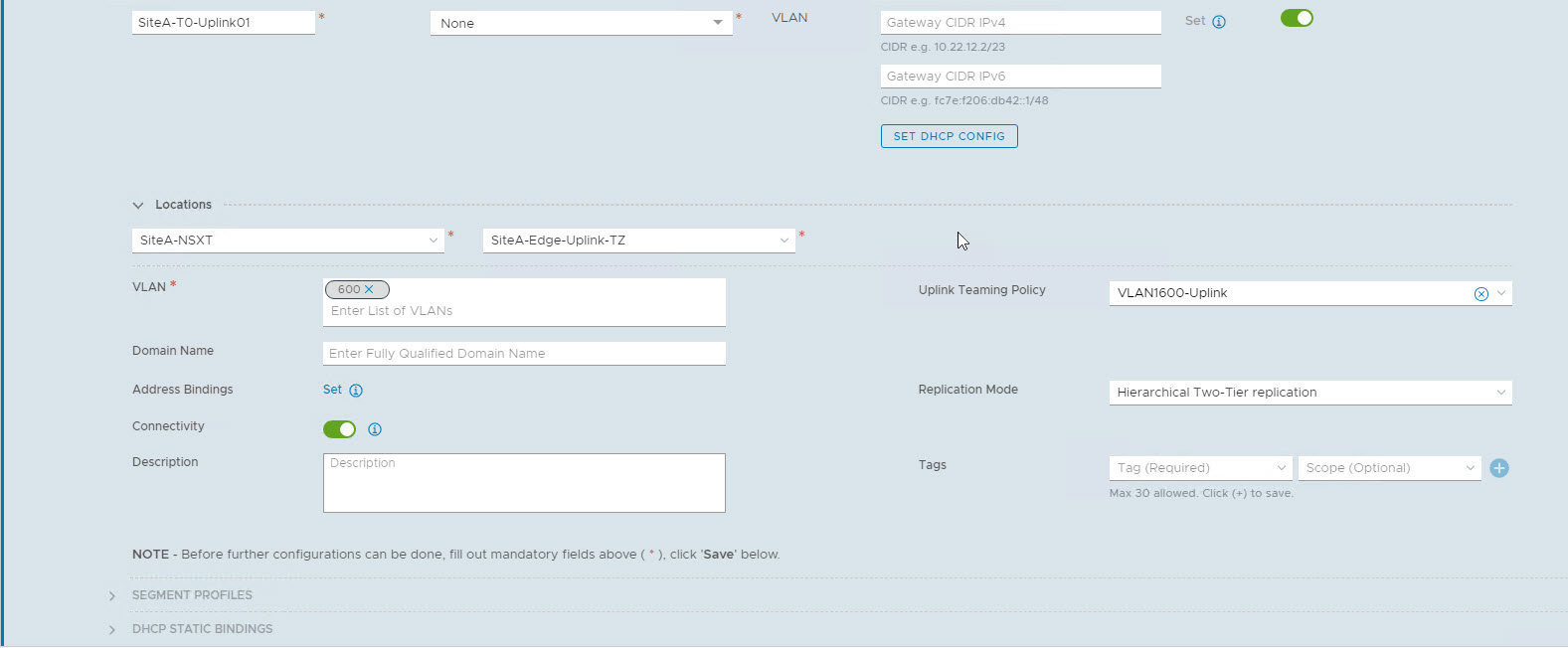
Since I have 2 sites added, I created 4 logical segments.
Edit the Tier-0 gateway and configure interfaces.

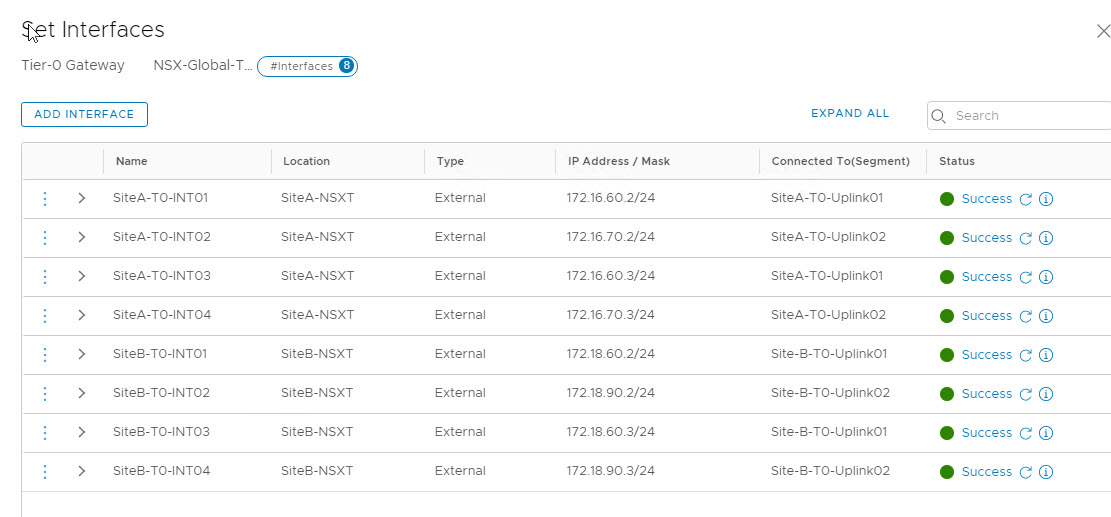
You have to create 4 interfaces per site. In each site, you might have 2 edge gateways, and there will be 2 interfaces per edge VM.
The diagram below shows the interface configuration of my T0 for Site A/B.
Configure BGP on Stretched T0
Edit BGP settings and set the Local AS number as per your environment.
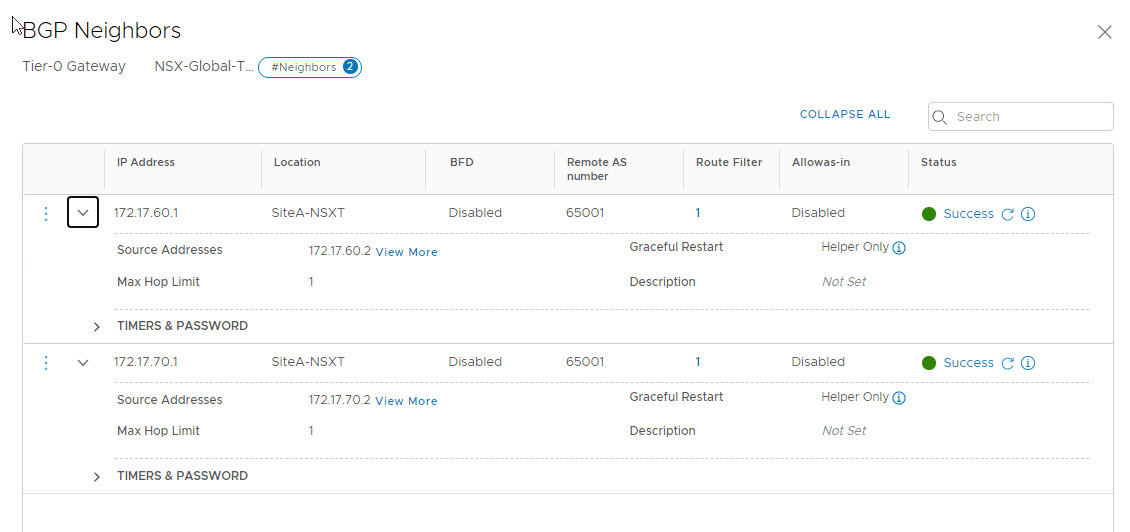
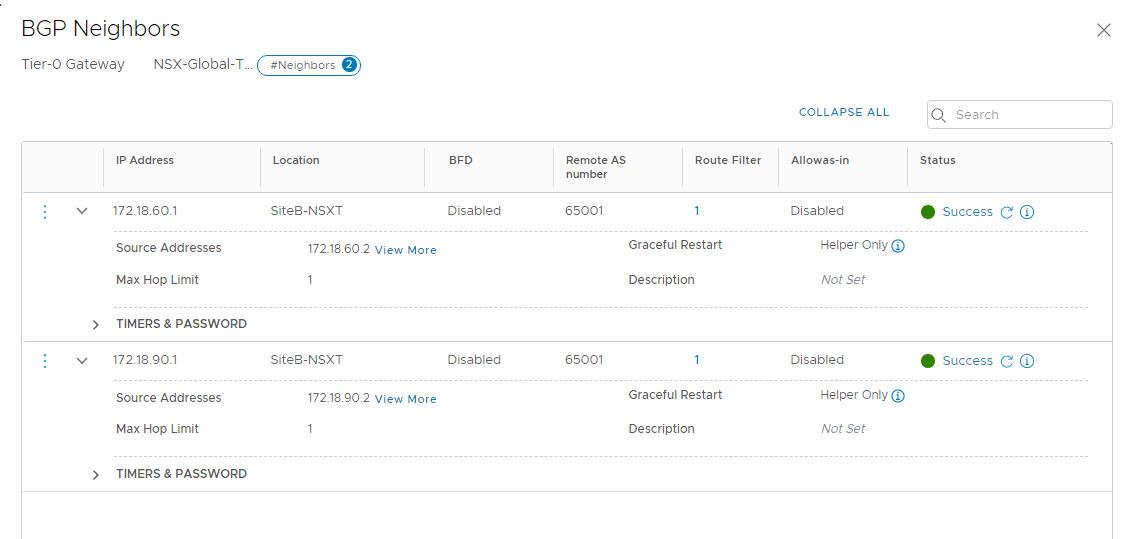
Under BGP neighbors, click on the set button to define BGP peers.
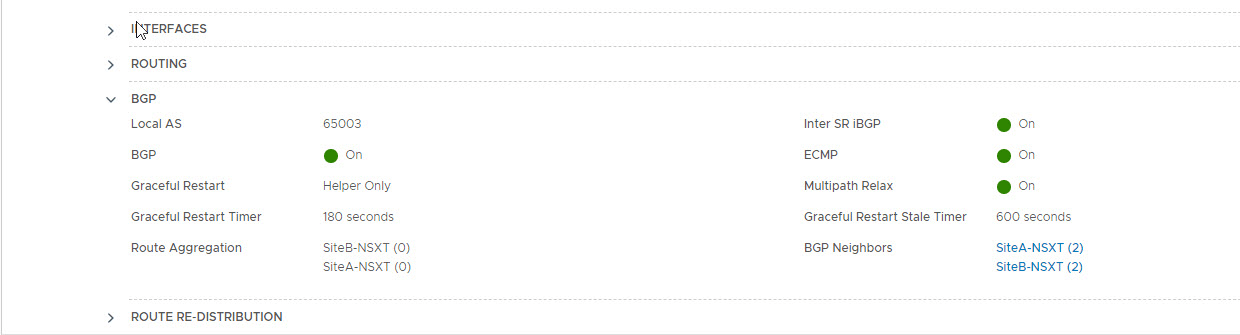
My BGP neighbor configuration is shown in the image below.
Also, route redistribution is enabled on the Tier-0 gateway.
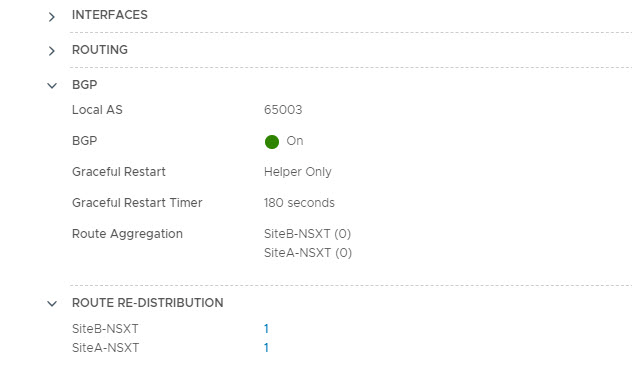
You must define route redistribution for all the sites across which T0 is stretched.
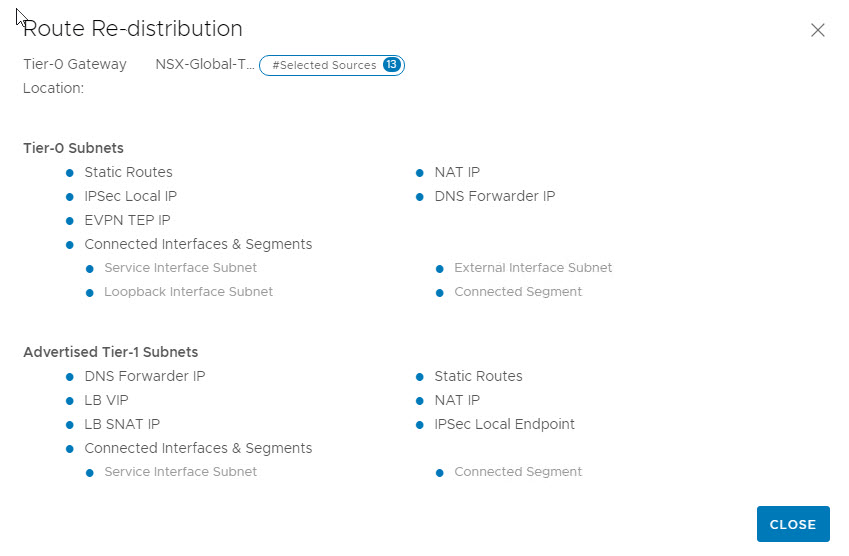
And that concludes this post. In the next post of this series, we will see federation in action.
I hope you enjoyed reading this post. Feel free to share this on social media if it is worth sharing.